Set up VLC for the VLC Remote - Windows

back to setup main page

A) Enable the HTTP Interface

  1. Open the VLC settings
    • VLC Menu/Tools/Preferences
  2. Enable 'All Settings' (by default VLC only shows the most used settings)
    • Click on the 'All' button at the bottom left of the screen
  3. Enable the interface
    • Select the 'Interface', then 'Main Interfaces', then select the 'HTTP Remote Control Interface' checkbox
    • NB - You have to actually click where it says 'Main Interfaces' on the left hand window, rather than expanding the list and clicking on a sub-option.
  4. Save the Preferences
  5. Exit VLC then restart it

win prefs


B) Give your phone permission to access VLC

Once you have enabled the http interface, press re-scan on your phone remote.

If you see a traffic cone beside the computer you are trying to control, then you can skip this step.

If you are using a recent version of VLC then you will see a cone with a red X through it. This means you need to give your phone permission to access VLC.

VLC in the latest versions uses a file called '.hosts' to define which computers can access the VLC remote player. You need to open this file and edit it:

  1. Open Word Pad (Not Notepad)
    • Start/All Programs/Accessories/Word Pad
  2. Open the .hosts file
    • Click 'Open File'
    • Make sure that 'Files of Type' at the bottom shows 'All Documents *.*'
    • Navigate and select C:\Program Files\VideoLAN\VLC\http\.hosts
  3. Make the changes suggested below and save the file.
  4. Quit and restart VLC and all should work.

#
# Access-list for VLC HTTP interface
# $Id$
#

# localhost
::1
127.0.0.1

# link-local addresses
#fe80::/64

# private addresses
#fc00::/7
#fec0::/10
#10.0.0.0/8
#172.16.0.0/12
#192.168.0.0/16
#169.254.0.0/16

# The world (uncommenting these 2 lines is not quite safe)
#::/0
#0.0.0.0/0

if you want to access VLC from your local network, then you will need to remove the # signs in the 'private addresses' area so that it looks like this

#
# Access-list for VLC HTTP interface
# $Id$
#

# localhost
::1
127.0.0.1

# link-local addresses
#fe80::/64

# private addresses
fc00::/7
fec0::/10
10.0.0.0/8
172.16.0.0/12
192.168.0.0/16
169.254.0.0/16

# The world (uncommenting these 2 lines is not quite safe)
#::/0
#0.0.0.0/0

if you want to access VLC from the entire world, then remove the # in the 'The World' section. As VLC says, this is 'not quite safe' as you allow the whole world to control your VLC player.

#
# Access-list for VLC HTTP interface
# $Id$
#

# localhost
::1
127.0.0.1

# link-local addresses
#fe80::/64

# private addresses
fc00::/7
fec0::/10
10.0.0.0/8
172.16.0.0/12
192.168.0.0/16
169.254.0.0/16

# The world (uncommenting these 2 lines is not quite safe)
::/0
0.0.0.0/0

C) Let VLC through your firewall

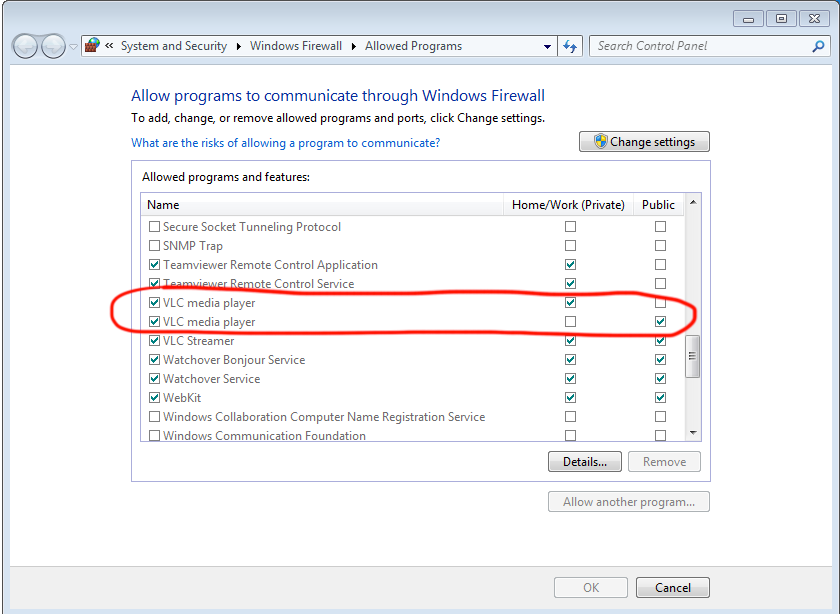
When you launch VLC, Windows may ask you whether to block or unblock VLC. If you see this option, then you should choose 'unblock'. This allows VLC to communicate to your phone (and vice versa).

If you don't see this alert and VLC remote isn't automatically finding your VLC player when you press 're-scan' then you will need to manually allow VLC through the firewall

  1. Open the Control Panel (start/Control Panel)
  2. Launch the 'Windows Firewall'
  3. Click on the 'Exceptions' tab
  4. Make sure that there is a checkmark next to VLC

Windows Firewall


D) Update status.xml

VLC's status.xml file needs to be updated in order to enable DVD controls, subtitle control and other advanced controls.

The current file is saved in

C:\Program Files\VideoLAN\VLC\http\requests\status.xml

Replace that file with this one (right click on the link and 'save content as...')

E) That's it!

By now, you should be able to see your computer in the VLC Remotes page under 'Found Computers'. If VLC is running on your computer, then you should see a Traffic cone next to the computer entry.

You can then select that computer and control it remotely.

Troubleshooting...

If you can't connect, try the troubleshooting page.